
If you need a Starbucks receipt fast, the best starting point is usually the Starbucks app. Sign in, open your account history or transaction history, select the order, and save the receipt from there. If the purchase is not showing, your next-best options are the confirmation email, the delivery app you used, or a same-day store reprint for in-store purchases.
The fastest way to get a Starbucks receipt
For most app-based Starbucks purchases:
- Open the Starbucks app and sign in.
- Go to your
Profile,History,Transaction History, or a similar past-orders area. - Find the purchase you need.
- Open the transaction details.
- Save a screenshot, use a share/export option if your app shows one, or switch to desktop and save it as a PDF.
That is the shortest path for most people. The rest of this guide covers the versions that usually cause confusion: email receipts, in-store purchases, website access, and delivery-app orders.
Which Starbucks receipt path should you use?
Start with how the order was placed:
- Paid with the Starbucks app or ordered in the app: check your account history first
- Received a Starbucks confirmation email: search your inbox and use that as your recovery path
- Ordered through Uber Eats or DoorDash: use the receipt in that delivery app
- Paid in store with cash or a regular card: ask for the printed receipt or try a same-day reprint at the store
- Need a clean PDF for accounting: open the receipt on desktop when possible and use your browser print dialog
This matters because not every Starbucks purchase ends up in the same place.
How to get a Starbucks receipt in the Starbucks app
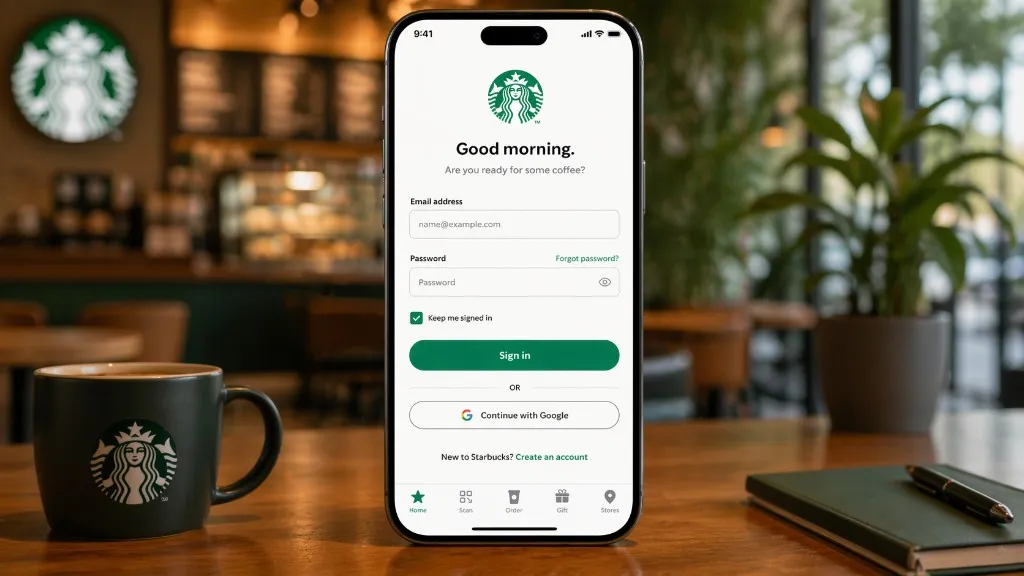
1. Sign in to the right Starbucks account
Open the Starbucks app and make sure you are signed into the same account that was used for the purchase. If you have more than one email address or more than one Starbucks login, confirm that first before you spend time searching old orders.
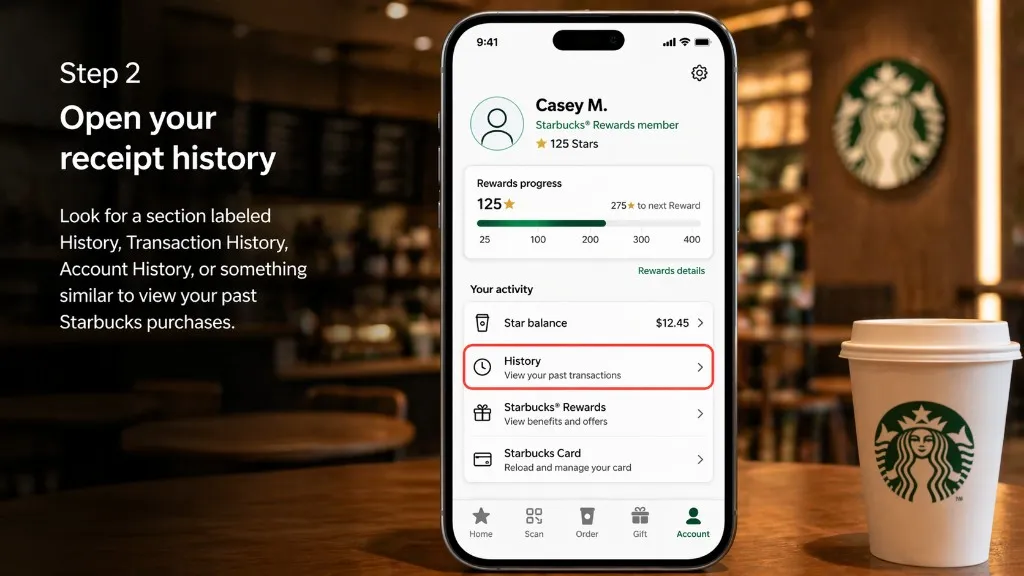
2. Open your receipt history
Look for a section labeled History, Transaction History, Account History, or something similar. The exact wording can vary by app version and region, but the goal is the same: open the list of past Starbucks purchases tied to your account.
Some versions may place this under your profile. Others may surface history closer to the scan, card, or activity area.
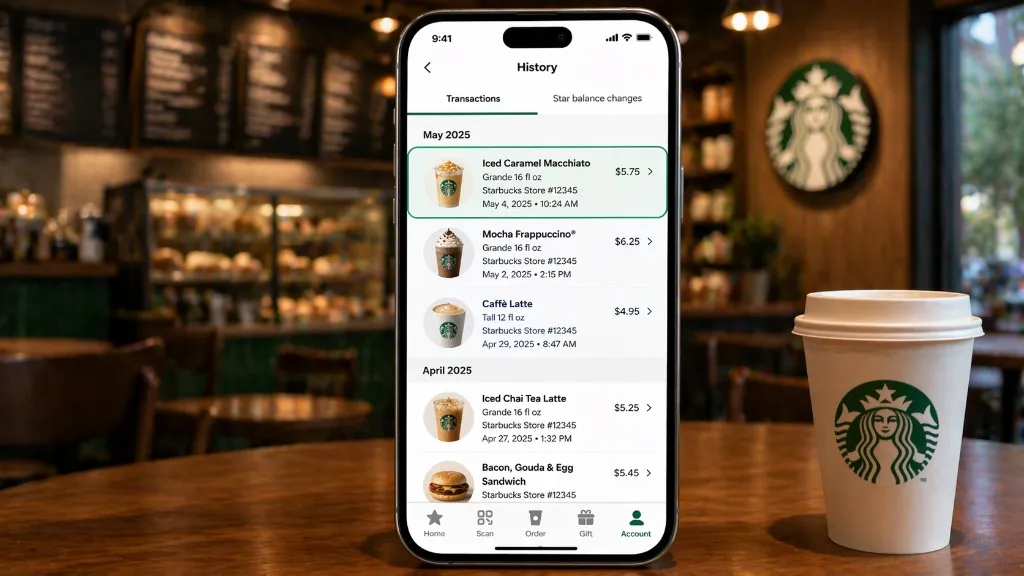
3. Find the order you need
Scroll through the list and match the purchase by date, store, amount, or items. This is especially important if you buy Starbucks often or if several transactions happened on the same day.
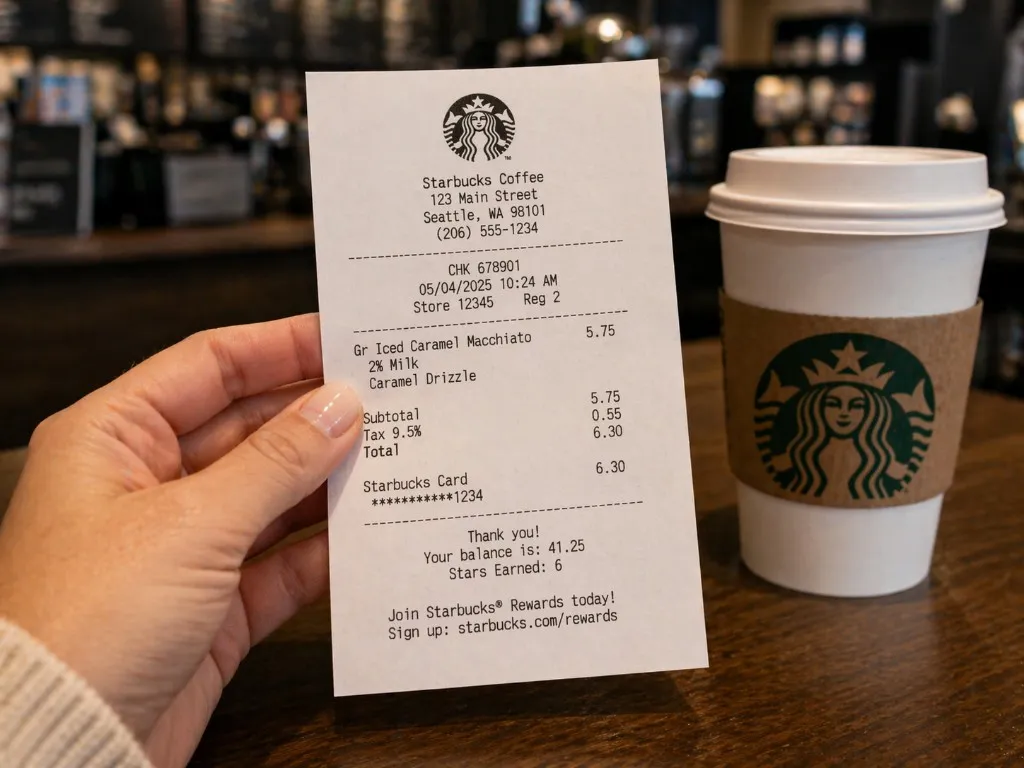
4. Open the receipt details
Once you open the transaction, review the details before saving anything. A useful Starbucks receipt usually shows enough information to confirm the purchase, such as:
- store location
- order date and time
- item names
- subtotal and tax
- total charged
- discounts, rewards, or promotions if they were applied
If you need the document for reimbursement or bookkeeping, confirm you have the full itemized view rather than a minimal order summary.
5. Save it the easiest way
If your app shows a share or export option, use it. If it does not, a screenshot is the fastest fallback for personal records or quick reference. If you need a more formal file, open the same transaction on desktop or mobile web and save it as a PDF from your browser print dialog.
How to get a Starbucks receipt from email
If the Starbucks receipt is not easy to find in the app, check your inbox next. Many app-based and account-linked Starbucks purchases are followed by an email confirmation, and that is often the fastest recovery path when you know the order happened but do not want to scroll through your full history.
Try these steps:
- Search your inbox for
Starbucks,receipt,order, or the store name. - Open the email that matches the purchase date or total.
- Check whether it includes the itemized order details or a link back to the order.
- Save the email as a PDF, print it, or use it to locate the same purchase in your Starbucks account.
If nothing appears, check spam, promotions, and any secondary inbox tied to your Starbucks account.
Can you get a Starbucks receipt on the website?
Sometimes yes, but the web path is not always as obvious as the app path.
If your Starbucks account shows transaction or order history on desktop:
- Sign in on the Starbucks website.
- Open your account area.
- Look for purchase history, order history, or transaction history.
- Open the matching order.
- Use your browser print dialog to print it or save it as a PDF.
If your account does not show a clear web history section, go back to the app or your email. Those are usually the more reliable paths.
How to get a Starbucks receipt for an in-store purchase
In-store purchases are the hardest to recover later, especially if they were not tied to your Starbucks account.
Ask for the receipt before you leave
If you are still at the counter, ask for the printed receipt right away. That is the safest method for cash payments and for card purchases that were not processed through the Starbucks app.
If you already left, try a same-day reprint
If the store can identify the transaction, some locations may be able to reprint it the same day. Bring as much detail as you can:
- approximate time of purchase
- store location
- amount charged
- payment method used
For older purchases, contact support
If the same-day window has passed, support may still be able to help in some cases, but it is less certain. Keep your purchase details ready and avoid assuming every in-store transaction can be recovered later.
How to get a Starbucks receipt for Uber Eats or DoorDash orders
If you ordered Starbucks through Uber Eats, DoorDash, or another delivery app, use the receipt in that app instead of searching the Starbucks app first.
That is usually the correct path because the delivery platform often becomes the merchant of record for the transaction. In practice, that means the order summary, fees, taxes, and total usually live in the delivery app’s order history.
Use the order-history section in the delivery app, open the Starbucks order, and then save, share, email, or print the receipt from there if the option is available.
Common problems and the fastest fix
I cannot find History or Transaction History
Starbucks changes app navigation from time to time. Check your profile, account, activity, card, or scan area, and look for any past-orders or history screen rather than relying on one exact label.
The purchase is not showing in my Starbucks account
Make sure you are signed into the right account. If you paid without using the Starbucks app, the purchase may never have been attached to your account at all.
I only need a file for reimbursement
If a screenshot is not enough for your process, open the receipt on desktop and use Print -> Save as PDF. That is usually the cleanest format.
I paid cash
Cash purchases are the most difficult to recover later. Your best option is the printed receipt at checkout or a same-day reprint from the same store.
The order was placed through a delivery app
Skip the Starbucks account lookup and go straight to Uber Eats, DoorDash, or the service that handled the order.
Tips if you need Starbucks receipts for accounting or reimbursement
- Save the document as soon as you find it, especially if you are opening an older order.
- Prefer the most complete itemized version of the receipt when you can.
- If the order was delivered, keep the delivery-app receipt because it may include fees and tip that are not shown the same way elsewhere.
- Use clear file names before you upload anything to an expense system.
If your real problem is not one Starbucks receipt but repeated document collection across vendors, the next useful pages are Inbox Scanning, AI Processing, and Integrations. You can also browse the full tutorial hub or read more workflow articles on the blog.
FAQ
Can I get a Starbucks receipt in the app?
Usually yes. If the purchase was tied to your Starbucks account, open the app, go to your history or transactions area, and select the order to view the receipt details.
Does Starbucks email receipts?
Many app-based and account-linked orders are followed by an email confirmation, so your inbox is a useful fallback when you cannot find the receipt in the app.
Can I get a Starbucks receipt if I paid cash?
Cash purchases are harder to recover later because they are not automatically tied to your account. Your best chance is to ask for the printed receipt at checkout or request a same-day reprint from the store.
What if I ordered Starbucks through Uber Eats or DoorDash?
Use the receipt inside the delivery app, because that platform usually becomes the merchant of record for the order.
Can I save a Starbucks receipt as a PDF?
Yes. If you can open the receipt on desktop or mobile web, the most reliable method is to use your browser print dialog and save it as a PDF.
Why can I not find my old Starbucks order?
The most common reasons are using a different account, paying without the app, or looking in the wrong place. Check your email, confirm you are signed into the right Starbucks account, and use the delivery app if the order was not placed directly with Starbucks.