
If you need a Walmart receipt fast, the usual online-order path is: sign in, open Account, go to Purchase History, open the order, and use your browser’s print dialog to print it or save it as a PDF. If the purchase was made in a physical store, use Walmart’s receipt lookup flow instead of online order history.
The fastest way to get a Walmart receipt
For most online orders on desktop:
- Sign in to your Walmart account.
- Open
Account. - Go to
Purchase History. - Select the order you need.
- Open the order details.
- Print the page, or save it as a PDF from your browser.
That is the shortest path for most people. The rest of this guide covers the versions that usually cause confusion: app access, guest checkout, email recovery, and in-store receipt lookup.
Which Walmart receipt method should you use?
Start with the purchase type, not the device:
- Online order in your account: use
Account->Purchase History-> order details - Guest checkout order: start with the confirmation email, then open Walmart’s order-tracking flow
- In-store purchase: use Walmart’s receipt lookup flow, not online order history
- Mobile-only situation: try the Walmart app first, but switch to desktop if the app does not clearly show a printable receipt
That distinction matters because many people search for a Walmart receipt when they really need one specific path.
How to get a Walmart receipt for an online order on desktop
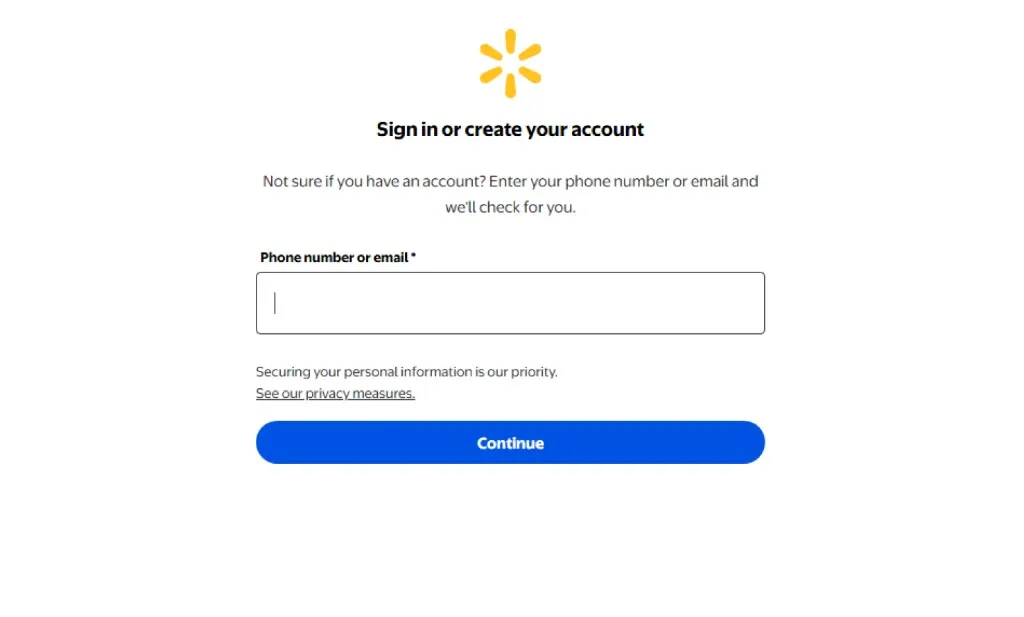
1. Sign in to the Walmart account that placed the order
Open Walmart in your browser and sign in with the same email address that was used for the purchase. If you have more than one Walmart account, verify you are in the right one before you start searching old orders.
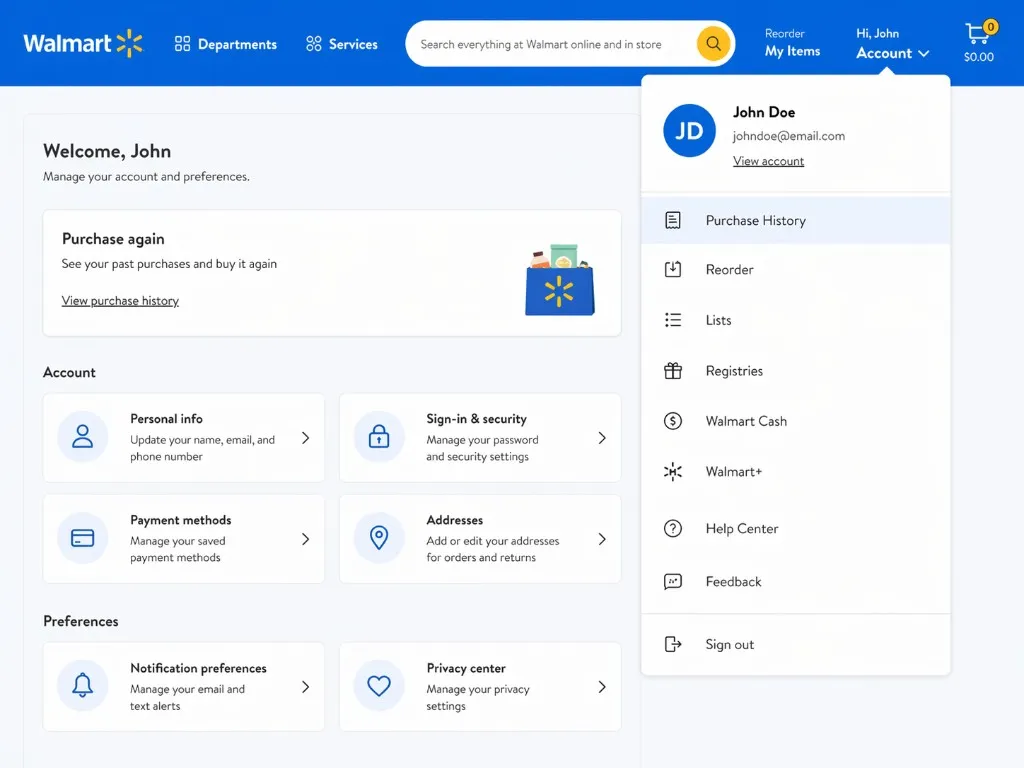
2. Open Account and go to Purchase History
After signing in, open Account and look for Purchase History or your orders list. Walmart’s wording can shift slightly over time, but the goal is the same: open the list of past orders tied to your account.
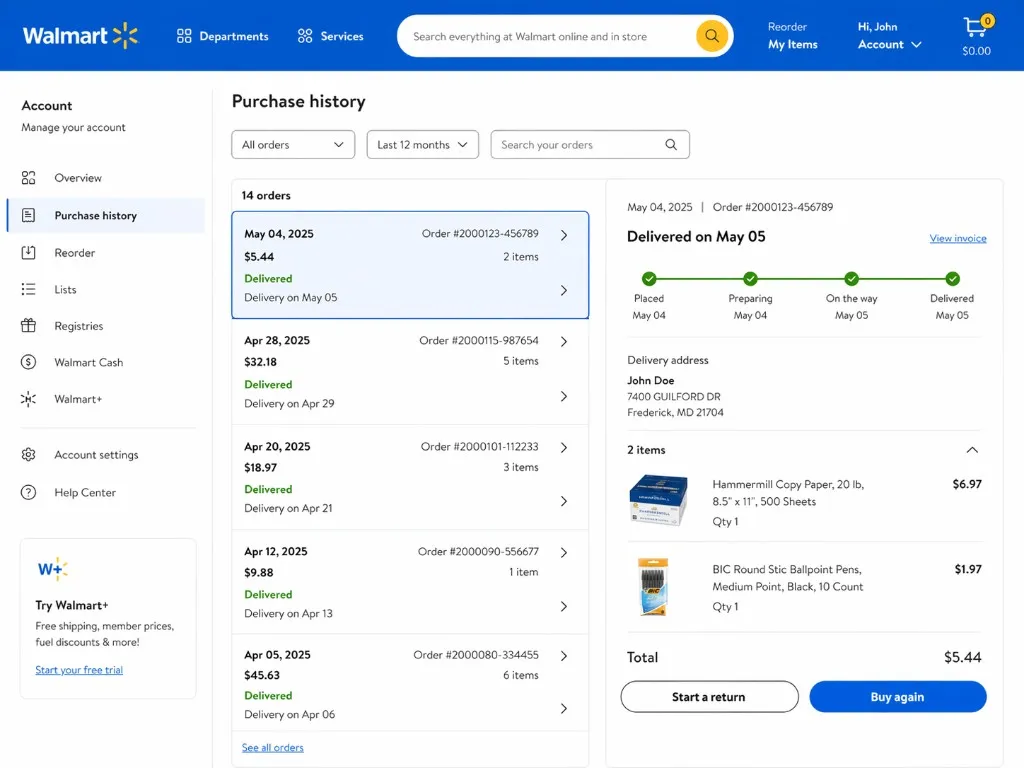
3. Find the order you need
Scroll through the order list and open the matching purchase. If you are looking for an older order, check the date carefully and compare the items before you print anything.
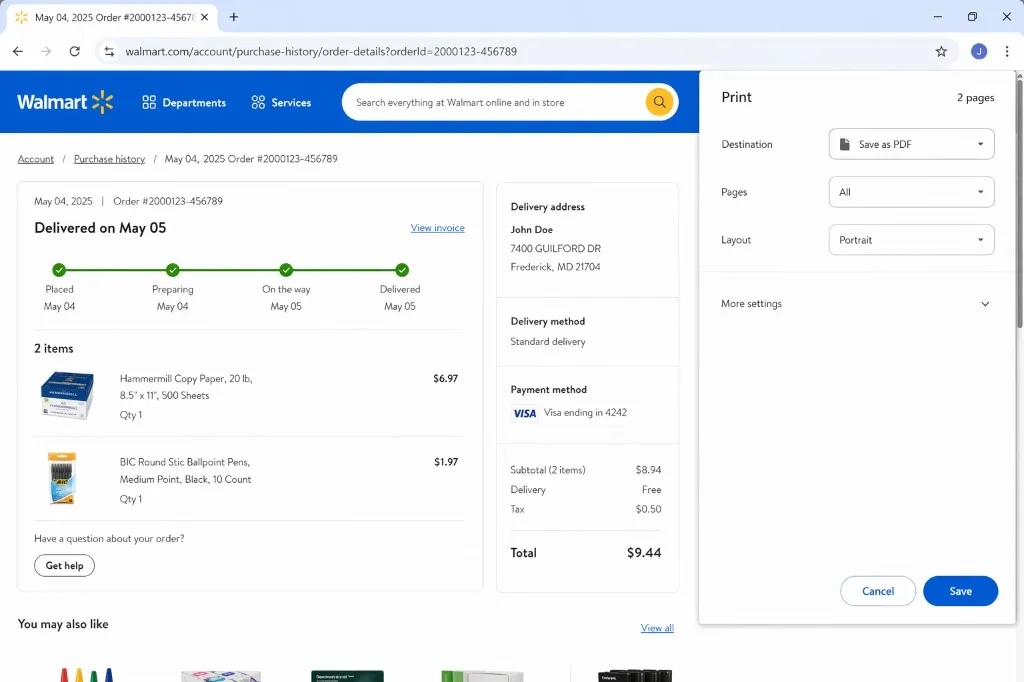
4. Open the order details page
Select the order to open the full details page. This is usually where you can confirm the item list, payment information, shipping details, taxes, and totals before saving the document.
5. Print it or save it as a PDF
Walmart may not always show the exact same receipt controls for every order, but the reliable fallback is your browser print dialog.
- Open the order details page.
- Use your browser’s print command.
- Choose your printer, or switch the destination to
Save as PDF.
If you do not have a printer nearby, saving the receipt as a PDF is usually the cleanest option for reimbursements, returns, and recordkeeping.
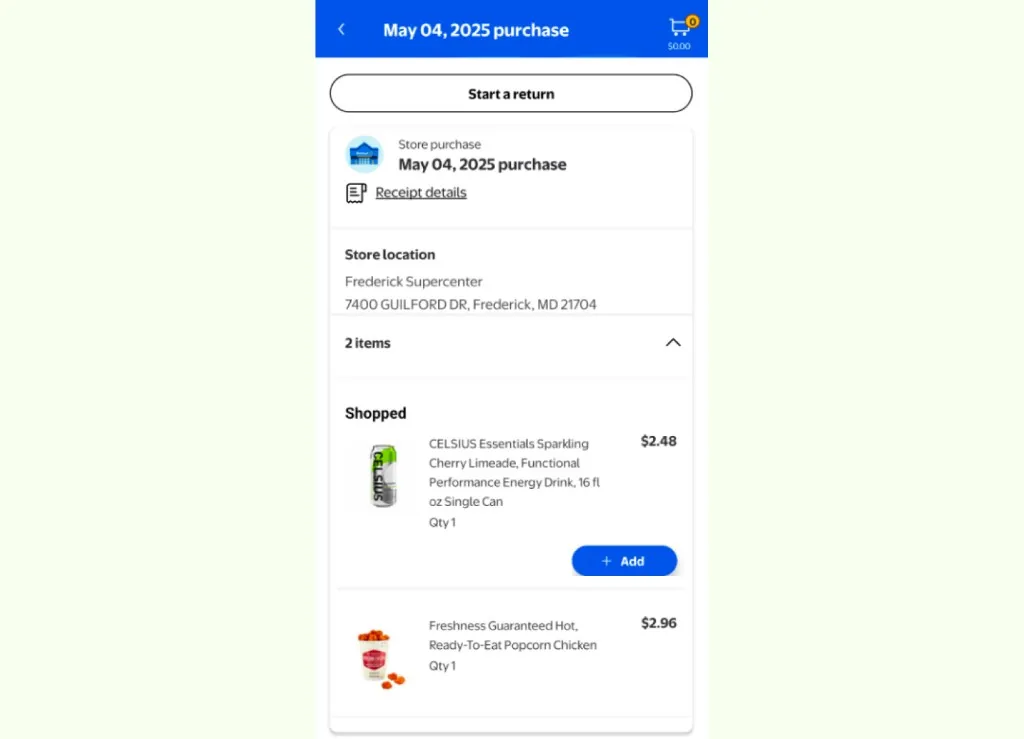
How to get a Walmart receipt in the app
If you are on your phone, the Walmart app can be a fast way to reopen an online order:
- Open the Walmart app.
- Tap
Account. - Open
Purchase History. - Select the order you need.
- Review the receipt or order details screen.
In some app versions, you may see sharing or export options. In others, the app is mainly useful for viewing the order and then deciding whether to save, share, or switch to desktop.
If you need a printable copy and the app does not show a clear print path, open the same order on desktop and save it as a PDF there. That is usually faster than guessing through mobile menus.
How to get a Walmart receipt from email or guest checkout
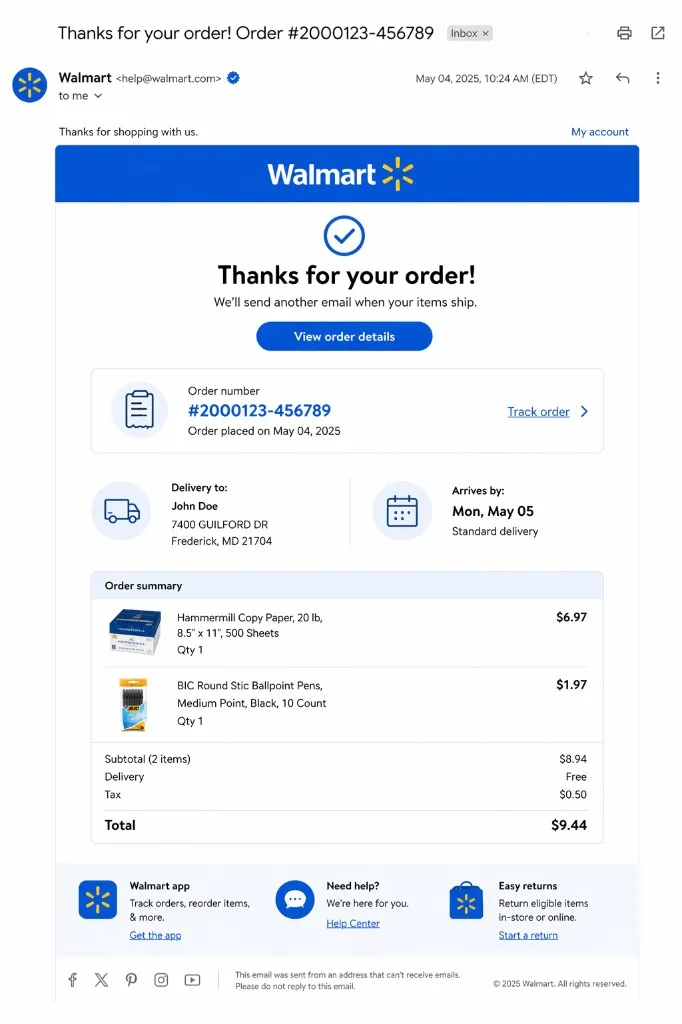
If you placed the order without signing into a Walmart account, the confirmation email is usually your best starting point.
From a confirmation email
- Search your inbox for the Walmart order confirmation.
- Open the email with the matching order date or item.
- Follow the order link or note the order number.
- Open the order details from that email path.
- Print the page or save it as a PDF.
For a guest order
If you checked out as a guest, use the same email address from checkout and the order number from the confirmation email in Walmart’s order-tracking flow. Once the order opens, you can usually print or save the page the same way you would for a normal online order.
This is also the best recovery path when the order does not appear in Purchase History because it was never attached to a signed-in account.
How to get an in-store Walmart receipt
Store purchases are different from online orders.
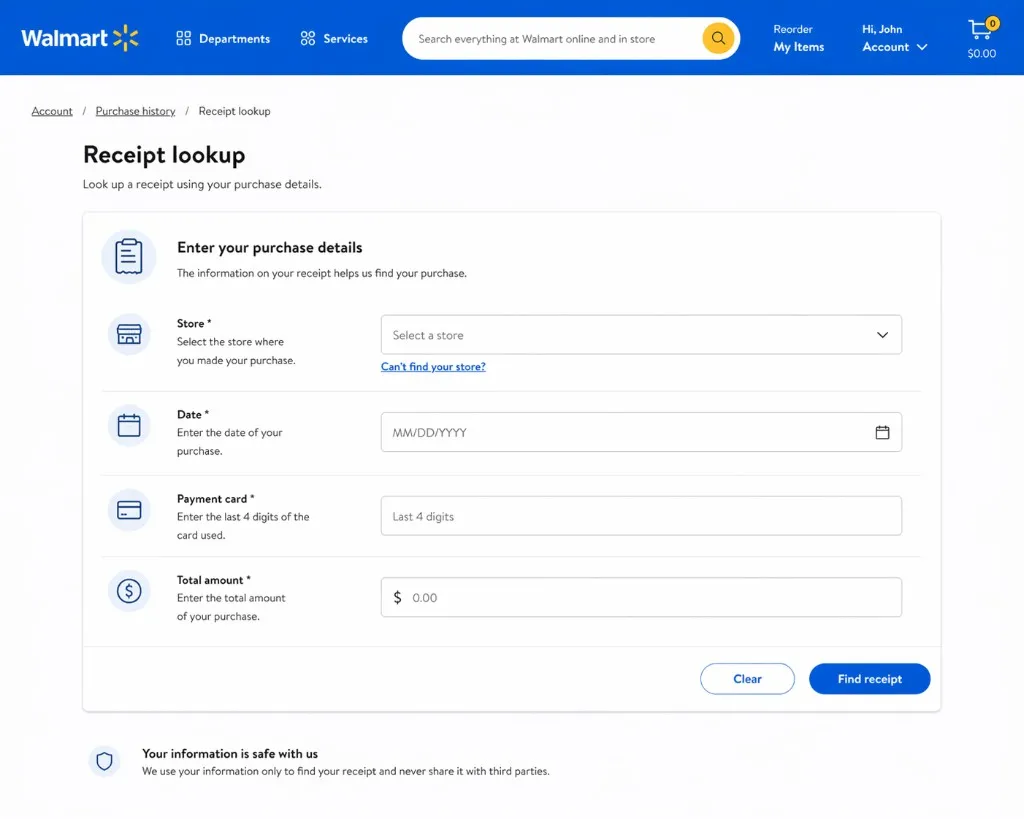
If you bought the item in a physical Walmart store, use Walmart’s receipt lookup flow. You will usually need:
- store information such as location or store number
- purchase date
- total amount
- card type
- last 4 digits of the payment card
Once the receipt appears, review it carefully and then print it or save it from your browser.
Two important caveats:
- This method is for in-store purchases, not Walmart.com orders.
- Cash purchases can be harder to recover because the lookup flow usually depends on payment details.
Some users also report that certain purchases appear in account-linked history, especially when payment methods or app usage are connected, but that is not the safest assumption. For store receipts, start with the dedicated lookup path.
Common problems and the fastest fix
The order is missing from Purchase History
The most common reason is that the purchase was made as a guest. Go back to your confirmation email and use the order-tracking path instead.
You are not sure whether the purchase was online or in store
Check how it was fulfilled. Shipped or delivered orders usually belong in online order history. A register purchase from a physical store usually belongs in receipt lookup.
You do not have a printer
Use Save as PDF from your browser print dialog. That is the simplest fallback and is often better than printing anyway.
The app shows the order, but you cannot print from it
Use the app to confirm you found the right order, then open the same order on desktop or mobile web and print or save it there.
You paid cash in store
Try the store-receipt lookup only if Walmart still gives you a workable path. If it does not, contact the store or Walmart support and keep the date, approximate time, items, and total amount handy.
Tips if you need Walmart receipts regularly
- Save PDFs with a clear filename before sending them to accounting or reimbursement tools.
- Keep online-order receipts and in-store lookup receipts in the same folder if they support the same expense workflow.
- If you submit receipts often, save the PDF before you leave the order page so you do not need to find it again later.
If your real problem is not one Walmart receipt but repeated document collection across vendors, the next useful pages are Inbox Scanning, AI Processing, and Integrations. You can also browse the full tutorial hub or read more workflow articles on the blog.
FAQ
Can I get a Walmart receipt for an online order?
Yes. For most online orders, sign in to Walmart, open Account, go to Purchase History, open the order details, and print or save the page as a PDF.
How do I find an in-store Walmart receipt?
Use Walmart’s receipt lookup flow for store purchases. You usually need the store information, purchase date, total amount, and the payment-card details used for the purchase.
Can I save a Walmart receipt as a PDF?
Yes. On desktop, the most reliable method is to open the order details or receipt page and use your browser’s print dialog to save it as a PDF.
Can I get a Walmart receipt from the app?
Often yes for online orders and some account-linked purchase history, but the exact layout can vary. If the app does not show what you need, switch to desktop or mobile web.
What if I checked out as a guest?
Start with your Walmart confirmation email, then use the order-tracking flow to reopen the order and print or save the receipt from there.
What if I paid cash in store?
The online receipt-lookup method usually depends on payment details, so cash purchases can be harder to recover. If lookup does not work, contact the store or Walmart support with as much purchase detail as you have.